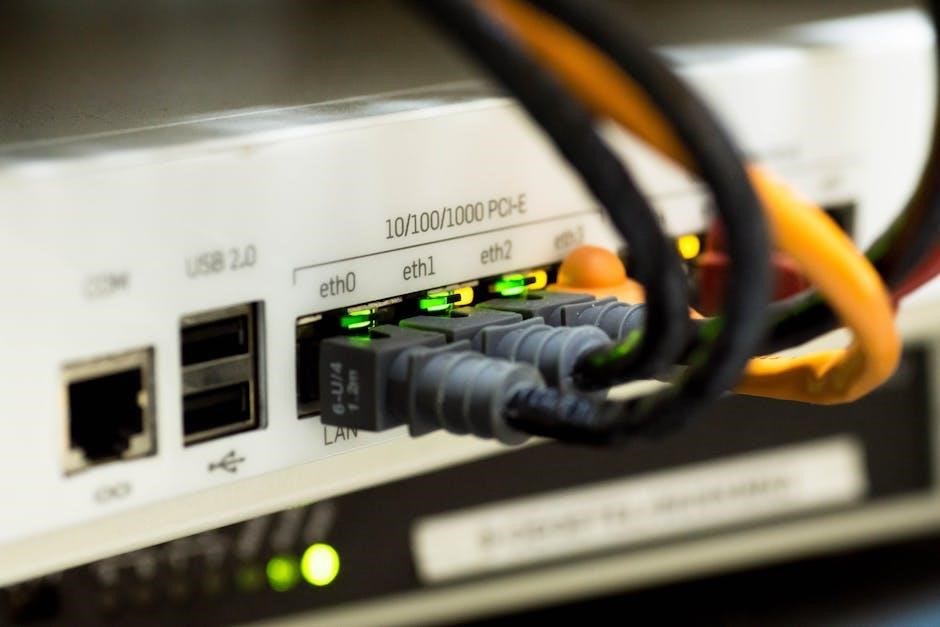
Modern routers offer streamlined, guided setups, simplifying network configuration for users. These intuitive interfaces eliminate complex settings, ensuring a seamless connectivity experience.
What is a Guided Router?
A guided router is a networking device designed with a user-friendly setup process. Unlike older models requiring technical expertise, these routers feature intuitive web interfaces or mobile apps that walk users through each configuration step. This typically involves a series of prompts and clear instructions, simplifying tasks like connecting to the internet, securing the wireless network, and customizing settings.
Essentially, a guided router aims to democratize networking, making it accessible to everyone regardless of their technical skill level. Manufacturers like Prolink and ASUS are increasingly incorporating these features, recognizing the demand for simpler, more straightforward router experiences. The goal is to eliminate confusion and ensure a stable, secure network connection with minimal effort.
Benefits of Using a Guided Setup
Guided router setups offer significant advantages for all users. They drastically reduce the complexity of network configuration, eliminating the need for advanced technical knowledge. This ease of use translates to faster setup times and fewer potential errors, ensuring a stable internet connection quickly.
Furthermore, guided setups often prioritize security, prompting users to create strong passwords and select appropriate wireless security protocols like WPA2 or WPA3. They also simplify advanced features like Quality of Service (QoS) and port forwarding, making them accessible to a wider audience. Ultimately, a guided setup empowers users to take control of their home network without feeling overwhelmed.

Initial Router Setup
Beginning the process involves physically connecting the router and accessing its web-based interface, typically via a standard IP address like 192.168.1.1.
Accessing the Router’s Interface (192.168.1.1)
To begin configuration, open a web browser on a device connected to the router – either via Ethernet cable or a temporary wireless connection if available. In the browser’s address bar, type the router’s default IP address, most commonly 192.168.1.1, and press Enter. This will direct you to the router’s login page.
If 192.168.1.1 doesn’t work, consult your router’s documentation or the manufacturer’s website for the correct address. Some routers use alternatives like 192.168.0.1 or 10.0.0.1. Successfully entering the IP address is the first crucial step towards customizing your network settings and securing your internet connection. Ensure a stable connection during this process.
Default Login Credentials (Admin/Admin)
Upon accessing the router’s interface, you’ll be prompted to enter a username and password. Many routers ship with default credentials for initial access. The most common combination is “admin” for both the username and password. However, this is a significant security risk, as these defaults are widely known.
Other manufacturers may use different defaults, such as a blank password, or combinations like “admin” and a blank field. Always refer to your router’s manual or the manufacturer’s website if “admin/admin” doesn’t work. Immediately after logging in, prioritize changing these default credentials to a strong, unique password to protect your network from unauthorized access.

Resetting the Router to Factory Defaults
Occasionally, you might need to restore your router to its original factory settings. This is useful if you’ve forgotten the login credentials, or if the router is malfunctioning due to incorrect configurations. Typically, a small recessed button on the router’s rear panel initiates this process.
Using a paperclip or similar object, press and hold this reset button for approximately 10-30 seconds while the router is powered on. The router will reboot, erasing all custom settings and reverting to the defaults. Remember that this will require you to reconfigure your network from scratch, including the wireless network name (SSID) and password. Consult your router’s manual for specific instructions, as timing can vary.

Wireless Network Configuration
Securing your wireless network is crucial; configuration involves changing the SSID, setting a robust password, and selecting a secure protocol like WPA2 or WPA3.
Changing the SSID (Network Name)
The SSID, or Service Set Identifier, is essentially the name of your Wi-Fi network. Changing the default SSID is a fundamental security step. Routers often come pre-configured with a generic name, easily identifiable to potential intruders. Access your router’s interface – typically via a web browser at 192.168.1.1 – and navigate to the wireless settings.
Here, you’ll find the option to modify the SSID. Choose a name that doesn’t reveal personal information, like your address or family name. Avoid using easily guessable terms. A unique and slightly obscure SSID adds a layer of security. Remember to save your changes after entering the new network name; the router may require a reboot for the change to take effect, briefly interrupting connectivity.
Setting a Strong Password
Protecting your Wi-Fi network with a robust password is crucial for security. Default passwords, often “admin” or “password,” are easily compromised. Within your router’s wireless settings (accessed typically via 192.168.1.1), locate the password or security key field.
Create a password at least long, incorporating a mix of uppercase and lowercase letters, numbers, and symbols. Avoid using dictionary words, personal information, or sequential numbers. A strong password significantly reduces the risk of unauthorized access to your network and connected devices. Regularly updating your Wi-Fi password is also recommended for enhanced security. Save the changes and test connectivity with the new password.
Wireless Security Protocols (WPA2/WPA3)
Choosing the right wireless security protocol is vital for protecting your network. WPA2 (Wi-Fi Protected Access 2) was the standard for many years, offering strong encryption. However, WPA3 is now the recommended choice, providing even more robust security features and protection against brute-force attacks.
Access your router’s wireless settings to select the security protocol. If your router and devices support it, opt for WPA3-Personal. If older devices are incompatible, WPA2-Personal is a suitable alternative. Avoid using WEP, as it’s outdated and easily cracked; Ensure all your devices are compatible with the chosen protocol for optimal security and network performance. Regularly check for firmware updates to maintain protocol effectiveness.

Network Settings Configuration
Configuring network settings involves setting up LAN (local network) and WAN (internet connection) parameters, alongside MAC address cloning for device identification.
LAN Setup (Local Network)
Local Area Network (LAN) setup defines how devices connect within your home or office network. This typically involves configuring the router’s IP address, which acts as the gateway for all connected devices. The default is often 192.168.1.1, but can be customized.
You’ll also define the DHCP server range, automatically assigning IP addresses to devices joining the network. Proper LAN configuration ensures smooth communication between computers, printers, and other networked devices. Understanding subnet masks is crucial for defining network size and efficiency.
Many guided setups offer simplified LAN settings, allowing users to quickly establish a functional local network without needing extensive technical knowledge. Secure your LAN by enabling access control features if available.
WAN Setup (Internet Connection)
Wide Area Network (WAN) setup configures your router’s connection to your Internet Service Provider (ISP). This often involves selecting a connection type – Dynamic IP, Static IP, or PPPoE – based on your ISP’s requirements. Dynamic IP is the most common, automatically obtaining an IP address from your ISP.
PPPoE requires a username and password provided by your ISP, frequently used with DSL connections. Static IP requires manually entering the IP address, subnet mask, gateway, and DNS servers. Guided setups simplify this process, often auto-detecting your connection type.
Correct WAN settings are vital for establishing a stable internet connection. Troubleshooting often involves verifying these settings with your ISP if connectivity issues arise. Ensure your router’s MAC address is correctly registered with your ISP if required.
MAC Address Cloning
MAC address cloning, or spoofing, duplicates the MAC address of your previous device, often necessary when ISPs bind internet access to a specific MAC address. This is common with some older DSL or cable connections. Guided setups offer a straightforward cloning process, usually involving a “Clone MAC Address” button.
The router scans for connected devices and displays their MAC addresses, allowing you to select the one to clone. This bypasses the need to manually enter the hexadecimal address. Cloning is a workaround, not a permanent solution, and may require repeating if you change devices.
Incorrect cloning can lead to connectivity issues, so ensure you select the correct MAC address. It’s a useful feature for seamless transitions when replacing a router.

Advanced Router Settings
Advanced settings unlock powerful features like QoS, IPv6 configuration, and port forwarding, enabling network customization for optimal performance and security.
Quality of Service (QoS) Configuration
Quality of Service (QoS) is a crucial feature for optimizing your internet experience, especially with multiple devices or bandwidth-intensive applications. Through your router’s interface, QoS allows you to prioritize specific types of network traffic. For example, you can give preference to video conferencing, online gaming, or VoIP calls, ensuring they receive sufficient bandwidth even when other devices are actively using the network.
Configuring QoS typically involves assigning priority levels to different applications or devices. Many routers offer pre-defined QoS profiles, while others allow for custom configurations. By intelligently managing bandwidth allocation, QoS minimizes lag, buffering, and interruptions, resulting in a smoother and more reliable online experience for critical applications. Properly configured QoS significantly enhances network performance.
IPv6 Configuration
IPv6 is the next-generation Internet Protocol, designed to replace IPv4 due to the exhaustion of available IPv4 addresses. Modern routers increasingly support IPv6, offering a more robust and scalable addressing system. Enabling IPv6 on your router typically involves accessing the router’s settings and selecting an IPv6 connection type, such as Native, 6to4, or Tunnel.
Your Internet Service Provider (ISP) must also support IPv6 for it to function correctly. While not yet universally adopted, IPv6 offers benefits like simplified network configuration and improved security. Many guided router setups automatically detect and configure IPv6 if your ISP supports it. Transitioning to IPv6 ensures future-proofing your network and prepares it for the evolving internet landscape, offering a more expansive address space.
Port Forwarding
Port forwarding is a crucial technique for allowing external access to specific services running on your local network. This is essential for applications like game servers, security cameras, or remote access software. Guided router setups often simplify this process, presenting a user-friendly interface to create forwarding rules.
You’ll typically need to specify the internal IP address of the device, the port number to forward, and the protocol (TCP, UDP, or both). Incorrect port forwarding can create security vulnerabilities, so careful configuration is vital. Many routers offer pre-defined port forwarding templates for common applications, streamlining the setup. Properly configured port forwarding unlocks the full potential of network services, enabling seamless remote access and functionality.

Security Features
Robust security is paramount; guided routers offer built-in firewalls, VPN support (like ExpressVPN), and access controls to protect your network from threats.
Firewall Settings
A router’s firewall acts as a critical barrier, inspecting incoming and outgoing network traffic based on pre-defined security rules. Guided router interfaces typically present firewall settings with varying levels of customization. Basic settings often involve enabling or disabling the firewall entirely, while advanced configurations allow for granular control.
Users can often specify which types of traffic are permitted or blocked, based on port numbers, IP addresses, or applications. Many guided setups offer pre-configured security profiles – such as ‘high,’ ‘medium,’ or ‘low’ – simplifying the process for less technical users. Regularly reviewing and adjusting these settings is crucial to maintaining a secure network, especially as new online threats emerge. Properly configured firewalls significantly reduce the risk of unauthorized access and malicious attacks.
Using a VPN on Your Router (ExpressVPN Example)
Implementing a VPN directly on your router, like with ExpressVPN, encrypts all internet traffic from every connected device, offering network-wide protection. Guided router setups are increasingly supporting VPN client configurations, though the process varies by router model; ExpressVPN provides detailed guides and firmware specifically designed for compatible routers.
This approach bypasses the need to install VPN software on individual devices, simplifying security. The router connects to the ExpressVPN servers, masking your IP address and encrypting your data. Setup typically involves entering your ExpressVPN credentials into the router’s interface. Benefits include enhanced privacy, secure access to geo-restricted content, and protection on all devices, including those that don’t natively support VPNs.

Troubleshooting Common Issues
Connectivity problems and slow speeds are frequent router issues. Restarting the router, checking cables, and verifying internet service are initial troubleshooting steps.
Connectivity Problems
Encountering connectivity issues with your guided router is a common frustration. Initial steps involve verifying physical connections – ensure the Ethernet cable securely links your router to the modem, and that the modem itself has a stable internet connection. A simple router and modem reboot often resolves temporary glitches.
If problems persist, check if other devices can connect to the network, isolating whether the issue is device-specific or network-wide. Confirm the router is broadcasting a Wi-Fi signal and that your device is connected to the correct network (SSID).
Consider checking the router’s status lights; these provide valuable clues about the connection status. If issues remain, consult your internet service provider (ISP) to rule out service outages.
Slow Internet Speed
Experiencing slow internet speeds despite a stable connection requires troubleshooting. First, perform a speed test using an online tool to verify if you’re receiving the bandwidth you’re paying for from your ISP. Multiple devices simultaneously using bandwidth (streaming, gaming, downloads) can significantly impact speed; temporarily disconnect some to test.
Within your guided router’s interface, explore Quality of Service (QoS) settings. Properly configured QoS prioritizes essential traffic, potentially improving performance for critical applications. Ensure your router’s firmware is up-to-date, as updates often include performance enhancements.
Wireless interference from other devices can also contribute to slowdowns; try changing the Wi-Fi channel within your router settings.

Router Firmware Updates
Regular firmware updates are crucial for maintaining optimal router performance, security, and stability. Guided router interfaces often simplify this essential maintenance process.
Importance of Updates
Maintaining up-to-date router firmware is paramount for several critical reasons. Updates frequently include vital security patches, shielding your network from emerging threats and vulnerabilities exploited by malicious actors. Performance enhancements are also common, leading to faster speeds and a more stable connection.
Furthermore, firmware updates often introduce new features and compatibility improvements, ensuring your router functions optimally with the latest devices and technologies. Ignoring these updates leaves your network susceptible to attacks and may result in suboptimal performance. Guided router setups often feature automated update notifications or simplified update processes, making this essential task more accessible to all users, bolstering overall network security and efficiency.
How to Update Firmware
Updating your router’s firmware typically begins by accessing the router’s web interface, often via a browser at 192.168.1.1. Navigate to the administration or system tools section – the exact location varies by manufacturer. Look for a “Firmware Update” or “Router Update” option.
Many guided router interfaces offer automatic update checks, simplifying the process. Alternatively, you may need to manually download the latest firmware from the manufacturer’s website and upload it through the interface. Crucially, do not interrupt the update process; power loss can brick your router. The router will usually reboot automatically upon completion. Always refer to your router’s manual for specific instructions.